Searching, Filtering, and Bookmarking are tools that help search the site or a single page’s content and create shortcuts. Here, you will find a walk-through of the Main Search Bar on every page, Filters that appear on many pages, and Bookmarks that you can apply to content to create shortcuts.
Main Search Bar
The Main Search Bar is on all Wikirate pages. With it, you can search for:
- Companies,
- Metrics,
- Topics, and
- Projects.

Below is an example of a Main Search Bar results page; here is what you can see, result types are shown color:
- Research Projects: Black
- Metrics: Purple
- Topics: Orange
- Companies: Blue
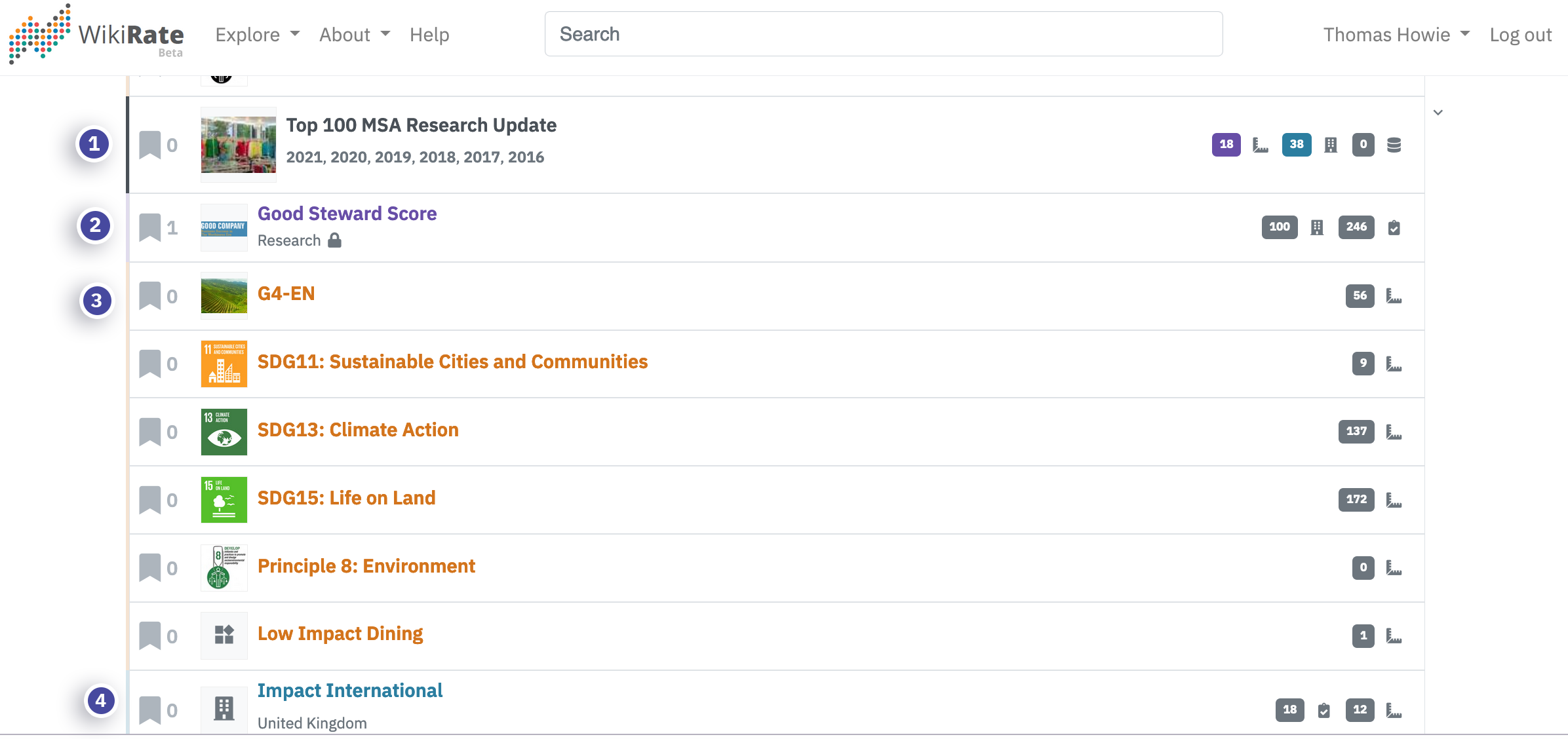
Note: We know things aren’t perfect here,but bear with us! We are working to improve the Main Search Bars results’ relevancy and interface.
Filtering
Filters help you narrow searches to return specific content you are looking for.
- Filters appear wherever there are Companies, Metrics, Projects, Datasets.
- They help you to look for content efficiently, by combining filters.
- Using filters in combination can also show content not yet created on Wikirate.
Filters introduction
There are some things to keep in mind when using Filters:
- Different pages have different Filters available because the information profiles differ from page to page.
- Filters can be free text boxes that you can type in or limited to specific options.
- You can combine Filters to look for specific information.
- The Sort function often appears next to Filters. You can use the Sort function in combination with Filters.
Here you can see the different available Filters on the Metric browse and search page, compared with the available filters on the individual Metric page:
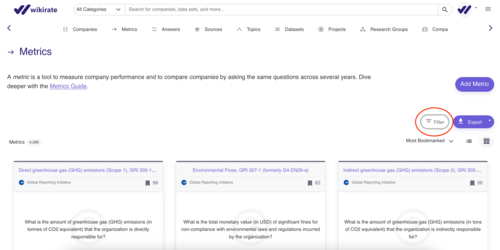
Filter example: Metric Answers
Filters narrow content to fit your interests. For example, if you want to find out which companies in the United Kingdom disclosed the amount of greenhouse gas emissions in 2020 we can use filters to do that.
Tip: Filtering is a valuable way to define content that you can export.

How to filter a Metric’s data points:
- Go to the Metric you want to explore, for example: Greenhouse Gas Emissions Scope 1.
- Select the Filters you wish to use, for example: Country and Year.
- Select the Country and Year you wish to return. For instance: Australia, and 2022.
- Scroll down the page to see the results.
Bookmarking
Bookmarking content such as Metric, Topic, Company, Company Group, Project or Research Group benefits you and the Wikirate community:
- The content you bookmark appears as Quick Filters, making it easier to find or re-find the content you are looking for. Logged-in users’ Bookmarks are saved.
- Each piece of content has a bookmark count, showing the number of times a user has bookmarked it.
- Bookmarking content promotes it higher up in landing and search pages.
How to bookmark:
- Click on the Bookmark icon next to a Metric, Topic, Company, Company Group, Project or Research Group to get quick access to the Wikirate elements you use most.
- To un-bookmark items, simply click on the bookmark icon once more.